Topics & Lessons
Create A Landing Page
Easily manage your presence with the new SwellSpace Landing Page. Designed for organizations with multiple entities or separate sites, this central hub helps users seamlessly navigate between different SwellSpace environments, all from one place. Whether you oversee regional teams, distinct business units, or multiple brands, the landing page keeps everything connected, organized, and simple to access.
Note: The landing page counts as one of the sites included in your purchased plan.
To create a landing page, when you click on “create a site” you will see the content in the image below. Select “Landing Page” and your desired template to get started.

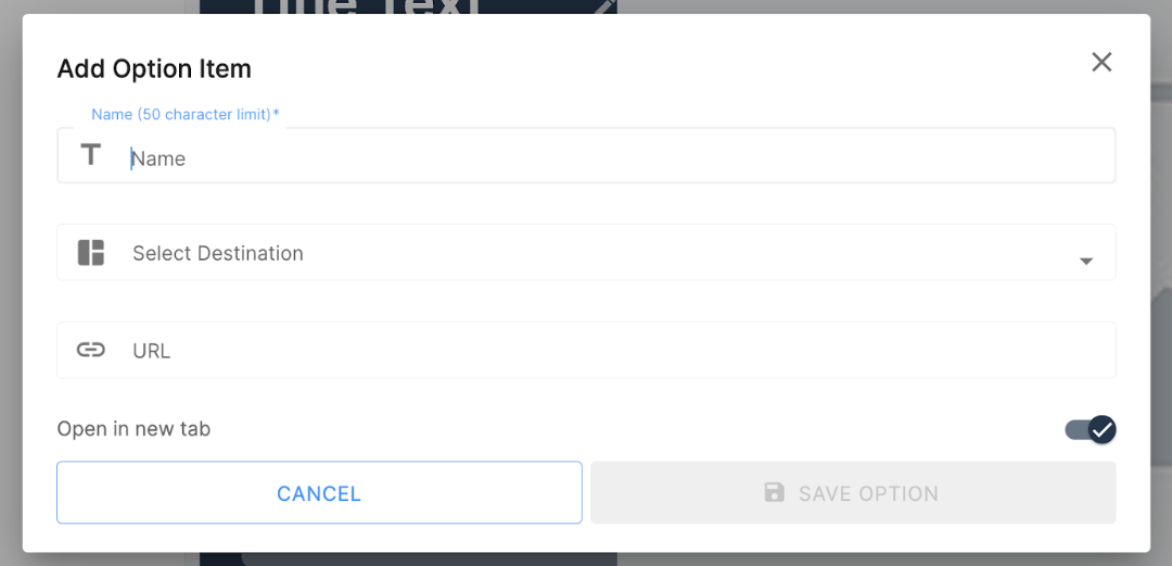
When you click the “Landing” icon on the left-hand side, you will be able to edit the drop down menu, its options, and their destinations.
When setting up your Landing Page, “Add Dropdown” and “Add Option” each serve a different purpose.
- Add Dropdown is where you create the main category. This becomes the title of the dropdown menu. For example, you might add a dropdown called Location or City.
- Add Option lets you add the selectable items that appear within that dropdown. So if your dropdown is Location, your options might be California, Arizona, and so on. If your dropdown is City, your options might be San Diego, Phoenix, etc.
This structure allows you to build organized, intuitive menus that guide users to the correct site or page.

When adding an option item, you can use the destination section to link that option to another SwellSpace site or to an external URL.